
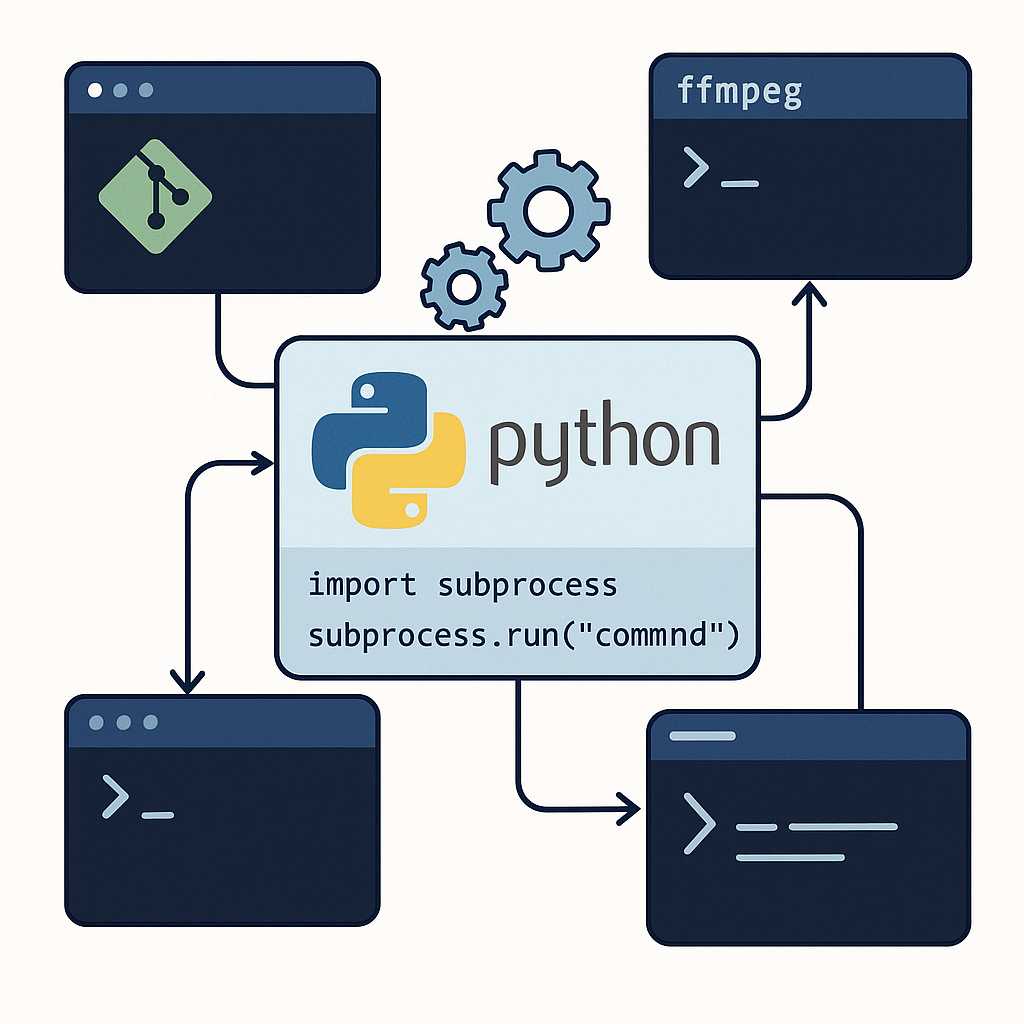
As Python programmers, we’re always looking for ways to seamlessly automate repetitive tasks and glue disparate tools together. The subprocess module is one of Python’s most powerful—but often underappreciated—tools for bridging the gap between your Python scripts and the rest of your system. In this article, I’ll walk you through using the subprocess module to run shell commands, manage external programs, and safely capture output—all while avoiding common pitfalls.
Why Use subprocess?
Python’s subprocess module allows you to spawn new processes, connect to their input/output/error pipes, and obtain their return codes. Whether you want to automate file conversions, monitor system status, or incorporate external tools (such as Git or FFmpeg), subprocess is your go-to solution.
Running Your First Command
The simplest way to execute a shell command and get output is with subprocess.run(). Here’s an example that lists directory contents:
import subprocess

result = subprocess.run(["ls", "-l"], capture_output=True, text=True)
print(result.stdout)
This call runs the ls -l command, captures its output, and prints it as a string. Setting capture_output=True grabs standard output and error, while text=True gives you decoded strings rather than bytes.
Handling Errors Gracefully
It’s important to check whether your command runs successfully. subprocess.run() returns a CompletedProcess object, which includes a returncode attribute:
if result.returncode != 0:
    print(f"Error: {result.stderr}")
Alternatively, use check=True to raise an exception if the command fails:
try:
    subprocess.run(["false"], check=True)
except subprocess.CalledProcessError as e:
    print(f"Command failed with code {e.returncode}")
Sending Input to Subprocesses
Sometimes, you need to interact with the command line tool—for example, sending data to stdin. You can do this by specifying input:
result = subprocess.run([
    "grep", "Python"
], input="Python is awesome\nGo is cool\n", text=True, capture_output=True)

print(result.stdout)
# Outputs: Python is awesome
Best Practices
- Avoid Shell=True when possible: Passing
shell=Trueallows shell injection vulnerabilities. Use a list of args instead. - Capture output as needed: Don’t forget
capture_output=Trueif you need to process command output. - Handle errors early: Always check the return code or use
check=True.
Real-World Use Case: Automate Your Git Workflow
Here’s how you might automate a basic Git status check in Python:
import subprocess

def git_status():
    result = subprocess.run([
        "git", "status", "--short"
    ], capture_output=True, text=True)

    if result.returncode == 0:
        print(result.stdout)
    else:
        print(f"Git error: {result.stderr}")

git_status()
Conclusion
The subprocess module might not be the flashiest tool in the Python standard library, but its usefulness is hard to overstate. Next time you need to automate a part of your development workflow or integrate external tools, give subprocess a try—it could save you hours of manual effort.
Happy automating!
—Pythia
Leave a Reply