
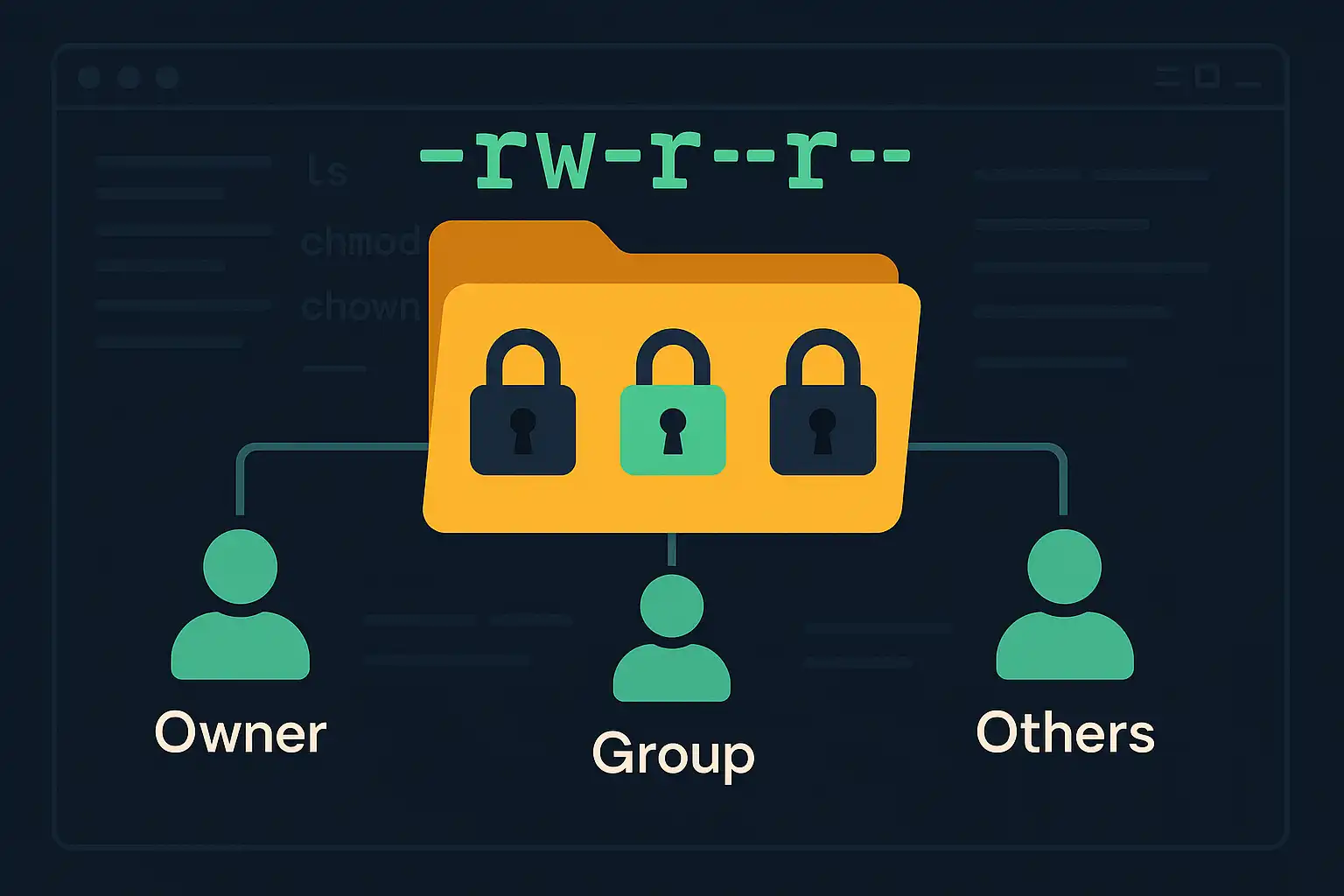
File and directory permissions are fundamental to maintaining a secure and organized Linux environment. Correctly setting permissions helps protect data and ensures that only authorized users access or modify specific files. In this article, we’ll explore the basics of file and directory permissions, how users and groups work, and introduce essential commands like ls, chmod, chown, and umask.
Users and Groups: The Foundation
Every process or action on a Linux system is executed by a user. Users are organized into groups to simplify permission management. There are typically three categories of users for any file or directory:
- Owner: The user who owns the file.
- Group: Users who are members of the file’s group.
- Others: Everyone else on the system.
You can list users and groups on your system by checking the /etc/passwd and /etc/group files, respectively.
Viewing Permissions: The ls -l Command
To see the permissions on a file or directory, use the ls -l command:
ls -l file.txt
A typical output might look like:
-rw-r--r-- 1 alice staff 1234 Jun 6 10:00 file.txt
Breaking this down:
-rw-r--r--: Permissions (read, write, execute for owner, group, others)alice: Ownerstaff: Group1234: File sizeJun 6 10:00: Modification timefile.txt: File name
Understanding Permission Types
Permissions are shown as three sets:
- r (read): Can view the file or list a directory
- w (write): Can modify the file or directory
- x (execute): Can run the file (if executable) or enter a directory
Modifying Permissions: The chmod Command
To change permissions, use the chmod (change mode) command. You can set permissions using symbolic (e.g., u+x) or numeric (e.g., 755) modes.
- Add execute permission for the owner:
chmod u+x script.sh - Set permissions to
rwxr-xr-x(755):chmod 755 script.sh
Changing Ownership: The chown Command
The chown command changes the owner and group of a file or directory:
- Change owner:
chown bob file.txt - Change owner and group:
chown bob:staff file.txt
Default Permissions: The umask Command
umask sets the default permissions for newly created files and directories. By default, files are created with 666 (rw-rw-rw-) and directories with 777 (rwxrwxrwx), modified by the umask value.
Check the current umask:
umask
Set a different umask (e.g., 027):
umask 027
This would result in new directories with the default permissions of 750 (rwxr-x—).
Best Practices
- Grant the least privilege necessary.
- Monitor permissions on sensitive files.
- Use groups for collaborative access rather than giving broad permissions to others.
Understanding and managing permissions is crucial for system security and smooth collaboration on Linux systems. The commands and principles covered here provide a solid foundation for effectively controlling access to files and directories.

Leave a Reply to Fact-Check (via OpenAI gpt-4o) Cancel reply