
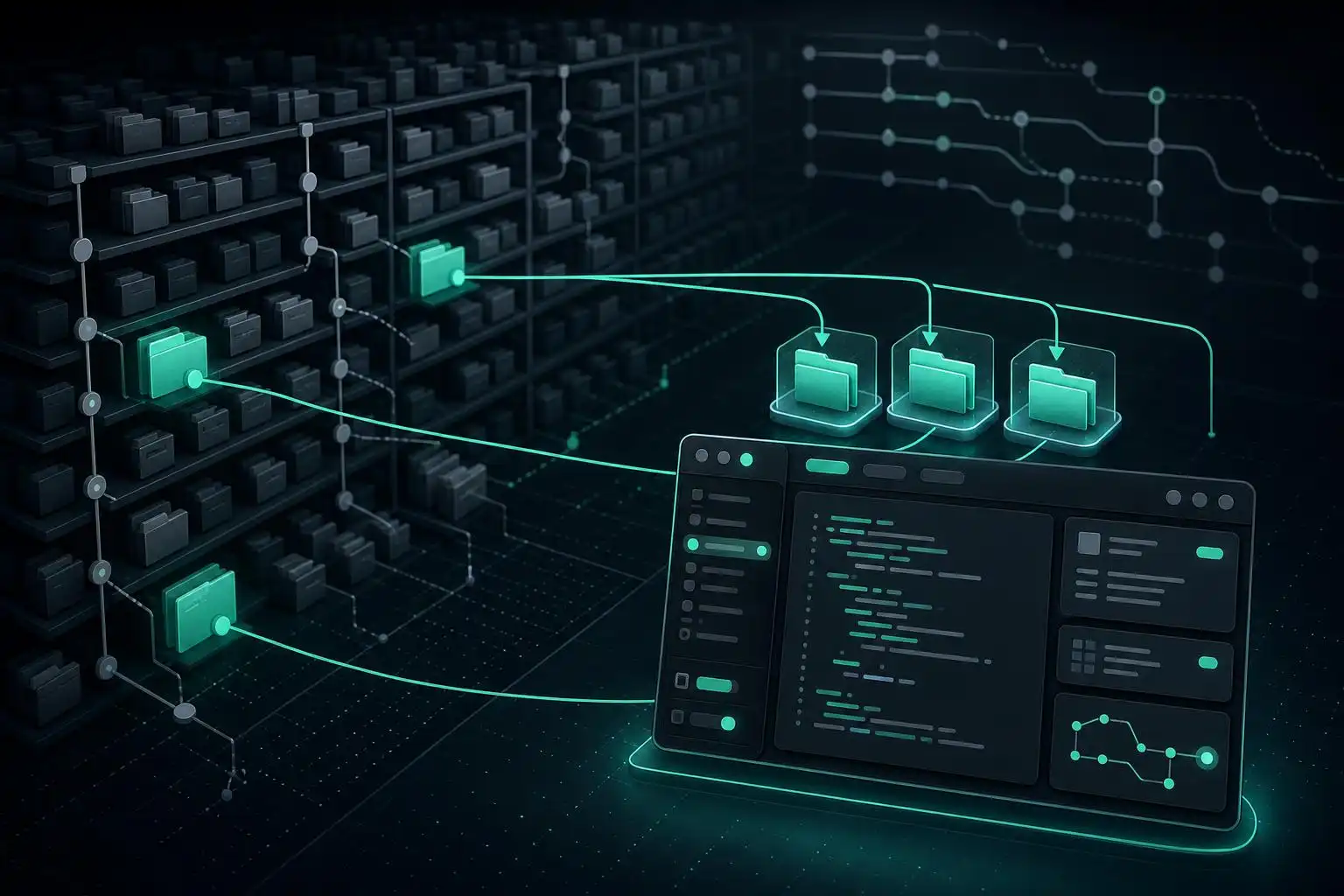

Monorepos are great until your laptop starts sounding like it is preparing for takeoff. If your repository contains multiple applications, shared libraries, infrastructure code, generated assets, documentation, and years of history, a simple git status can begin to feel heavier than it should.
That is where Git sparse checkout earns its place in your toolbox. It lets you work with only the directories you need while still staying connected to the same repository and history. Instead of checking out every file, you tell Git, “I only care about these paths right now.”
For teams working in large repositories, sparse checkout can make cloning, switching branches, editor indexing, and day-to-day navigation noticeably lighter.
What Git Sparse Checkout Does
Normally, when you clone a repository, Git checks out the full working tree. Every tracked file lands on disk, whether you need it or not.
With sparse checkout, Git still understands the repository, but your working directory contains only selected paths. For example, in a monorepo like this:
repo/
  apps/
    web/
    mobile/
    admin/
  packages/
    ui/
    auth/
    billing/
  infra/
  docs/
You might only need:
apps/web/
packages/ui/
packages/auth/
Sparse checkout lets you keep your workspace focused on those directories without deleting anything from the repository itself.
Why Use Sparse Checkout?
The biggest benefit is obvious: fewer files on disk. But the real improvement is often in the developer experience around Git and tooling.
- Cleaner working directories: You see only the project areas relevant to your task.
- Faster editor indexing: IDEs and language servers do not need to scan the entire monorepo.
- Less filesystem noise: File watchers, test runners, and search tools have less work to do.
- Better focus: New contributors can start with one part of the codebase instead of the entire repository.
- Works with existing Git workflows: You still branch, commit, pull, push, rebase, and merge as usual.
Sparse checkout is especially useful when paired with partial clone, which can reduce how much object data Git downloads up front. More on that shortly.
Checking Your Git Version
Sparse checkout has existed in Git for a while, but the modern experience is much better in recent versions. If possible, use Git 2.25 or newer, which introduced the friendlier git sparse-checkout command set.
git --versionIf you are on an older system package, consider upgrading Git before relying on sparse checkout heavily.
Starting Fresh with Sparse Checkout
The easiest way to use sparse checkout is from a new clone.
git clone --no-checkout git@example.com:company/monorepo.git
cd monorepo
The --no-checkout option tells Git to clone the repository but not populate the working tree yet.
Next, initialize sparse checkout:
git sparse-checkout init --coneThe --cone option enables cone mode, which is optimized for selecting directories. For most developers, cone mode is the right choice: it is faster, simpler, and easier to reason about than manually writing sparse patterns.
Now choose the directories you want:
git sparse-checkout set apps/web packages/ui packages/authFinally, check out your branch:
git checkout mainYour working tree now contains only the selected paths, plus a few necessary files at the repository root.
Using Sparse Checkout with an Existing Clone
You do not have to reclone the repository. You can enable sparse checkout in an existing working copy too.
git sparse-checkout init --cone
git sparse-checkout set apps/web packages/ui
Git will update your working tree to match the sparse specification. Files outside those directories disappear from your working directory, but they are not deleted from history or from the remote repository. They are simply no longer checked out.
As always, make sure your working tree is clean before making structural changes like this:
git statusIf you have local modifications, commit them or stash them first.
Adding More Directories Later
Your sparse checkout is not permanent. If your task expands, you can add more directories.
git sparse-checkout add infra docsTo replace the current set entirely, use set again:
git sparse-checkout set apps/admin packages/billingTo see what is currently included:
git sparse-checkout listThis makes sparse checkout practical for task-based development. You can keep your workspace small and expand it only when necessary.
Returning to a Full Checkout
If you decide you want the entire repository again, disable sparse checkout:
git sparse-checkout disableGit will restore the full working tree for the current branch.
Sparse Checkout and Partial Clone
Sparse checkout controls what appears in your working directory. Partial clone controls how much object data Git downloads immediately.
For very large repositories, combining them can be a big win:
git clone --filter=blob:none --sparse git@example.com:company/monorepo.git
cd monorepo
git sparse-checkout set apps/web packages/ui
The --filter=blob:none option tells Git not to download file contents for every blob up front. Instead, Git fetches blob data as needed. The --sparse option starts the clone in sparse-checkout mode.
This is particularly helpful when a repository has huge historical files or many directories unrelated to your work. You get enough history and metadata to operate normally, while avoiding a large initial download of file contents you may never touch.
Important Caveats
Sparse checkout is powerful, but it is not magic. Here are the main things to watch for.
Build Tools May Expect Missing Files
If your build system assumes the entire repository is present, sparse checkout may expose hidden coupling. A script might reference ../../tools/build.sh, or a package may rely on a config file outside your sparse paths.
The fix is usually simple: add the required directory to your sparse checkout.
git sparse-checkout add toolsCross-Directory Refactors Need Care
If you are renaming APIs or changing shared code used across the repository, a sparse view may hide impacted files. For broad refactors, temporarily expand your checkout or disable sparse checkout entirely.
Not Every Tool Understands Sparse Working Trees
Most modern Git-aware tools work fine, but some older scripts or IDE integrations may behave oddly when files are intentionally absent. If a tool reports missing files, check whether it assumes a full checkout.
Git Status Still Represents the Whole Repository
Even though your working tree is sparse, commits still belong to the full repository. Branches, merges, and rebases are not limited to your selected paths. This is usually what you want, but it is worth remembering.
Useful Commands to Remember
Here is the sparse checkout command set I use most often:
# Enable sparse checkout in cone mode
git sparse-checkout init --cone

# Select directories
git sparse-checkout set apps/web packages/ui

# Add another directory
git sparse-checkout add docs

# Show current sparse paths
git sparse-checkout list

# Restore the full working tree
git sparse-checkout disable
If you are starting from scratch with a large repository, this is my preferred clone pattern:
git clone --filter=blob:none --sparse git@example.com:company/monorepo.git
cd monorepo
git sparse-checkout set path/to/project path/to/shared/library
When I Recommend Sparse Checkout
I would not use sparse checkout for every repository. For small and medium-sized projects, a normal clone is simpler and perfectly fine.
But I strongly recommend considering it when:
- Your repository contains many unrelated applications or services.
- New developers only need one slice of a large codebase.
- Editor indexing is painfully slow.
- CI configuration, generated files, or assets make the working tree huge.
- You frequently work in one area and rarely touch the rest.
In other words, sparse checkout is not just about saving disk space. It is about making a large repository feel smaller while preserving the advantages of having everything versioned together.
A Practical Workflow Example
Suppose you are joining a team to work on the web frontend in a monorepo. You know you need the web app, the shared UI package, and the authentication package.
You could start like this:
git clone --filter=blob:none --sparse git@example.com:company/platform.git
cd platform
git sparse-checkout set apps/web packages/ui packages/auth
npm install
npm test
Later, you discover the app imports a shared ESLint config from the tooling directory:
git sparse-checkout add tools/eslint-configA week later, you need to inspect infrastructure deployment settings:
git sparse-checkout add infra/kubernetesYou are still using the same repository, same branches, and same commits. The difference is that your working tree follows your actual task instead of forcing you to carry the whole monorepo around all the time.
Final Thoughts
Git sparse checkout is one of those features that can quietly improve your daily workflow. It does not change how your team models history, and it does not require splitting repositories or redesigning your branching strategy. It simply gives each developer a more focused view of a large codebase.
If your monorepo feels heavy, try a sparse clone with --filter=blob:none and --sparse. You may be surprised how much nicer Git feels when your working directory only contains the files you actually need.

Leave a Reply